

Skype Meeting Error
Last updated by Ernesto Hidalgo at Mar 08, 2019 11:25 PM
If there is a user who is trying to create a new Skype meeting, but is receiving the error "Create Skype Meeting failed. Please make sure that Skype for Business is running and signed-in and try again." There is an issue with the RSA key that MS Office uses. This document aims to rectify the issue by clearing out the old keys and having Office generate new ones.
Solution
If users are receiving the following error everytime they try to create a Skype meeting:
Create Skype Meeting failed. Please make sure that Skype for Business is running and signed-in and try again.
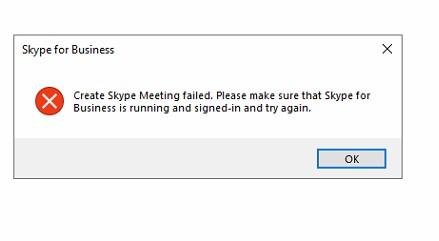
It is most likely caused by an issue with the RSA folder that MS Office uses. To clear the corruption and reset everthing, please follow the steps below:
- Exit Skype for Business and Outlook.
- Open Windows Explorer and locate (C:\Users\\AppData\Roaming\Microsoft\Crypto\RSA folder)
- Delete the RSA key subfolder. The name of the RSA key subfolder consists of a long string of numbers and characters. For example: S-1-5-21-433994307-1646369186-2100375486-500
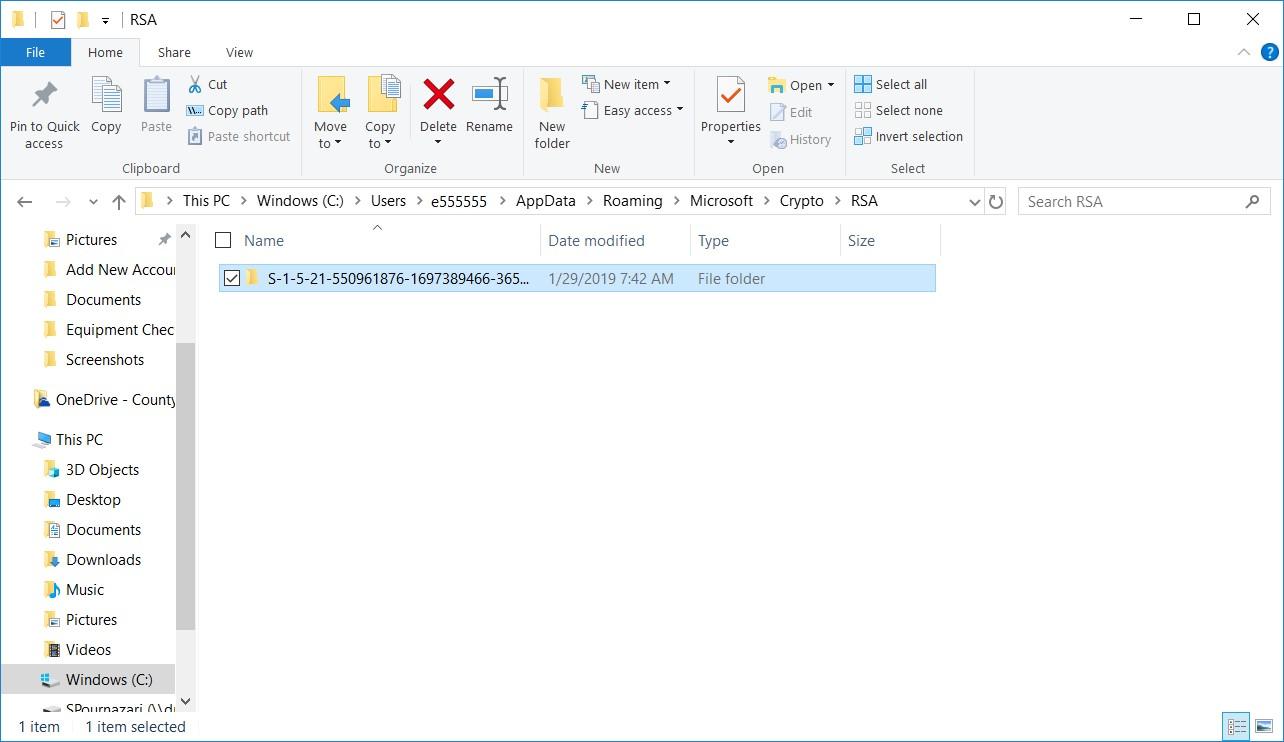
- Check if there is a similar folder under (C:\ProgramData\Microsoft\Crypto\RSA folder) and delete it as well.
- Restart the computer